
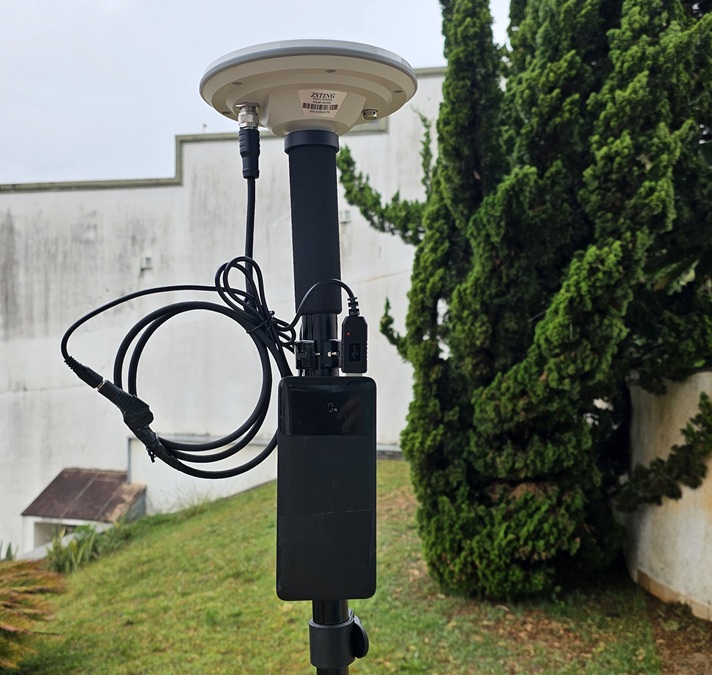
How a cheap GNSS antenna, made for the autopilot of farm machinery, became a centimeter RTK receiver to use on a pole with GPS TrackMaker
This is the story of an experiment. We bought on AliExpress a cheap GNSS antenna, sold for the autopilot of farm machinery, and turned it into an RTK receiver with centimeter accuracy, used on a pole with GPS TrackMaker on the phone. It works very well, but getting there was not simple: the antenna arrived unable to accept corrections, and only started working after a firmware update. We now know that this update can be done through the antenna’s own cable, without opening it.
Click Approved GNSS Receivers to find out where to buy.
Here we tell the whole story, what we had to buy and do, and how to use the AK330 with GPS TrackMaker once it is ready. Do not confuse it with the AK350 antenna, which is technically inferior and has no Bluetooth.
New to the subject? Start with the article RTK in GPS TrackMaker: from meter-level GPS to centimeter accuracy, which explains what RTK is, where the correction comes from and what you need to use it.
Warning: this equipment is meant for those with at least some technical knowledge. To get it working you may need to reflash the firmware, connecting the antenna’s wires to a USB-RS485 converter and using a program on the computer. TrackMaker does not sell, represent or provide any warranty for the AK330, and we cannot guarantee that a unit bought today will behave like ours. If you want a receiver that works out of the box, see the DATAGNSS NANO RTK Pro.
The short version, for those in a hurry
| Question | Answer |
|---|---|
| Does it work with GPS TrackMaker? | Yes. Rover and base station, over Bluetooth, on Android and on iPhone. |
| Does it reach RTK FIXED? | Yes, within seconds under open sky. We measured an error of up to 2.2 cm against a tape measure. |
| Does it work out of the box? | No. Our unit gave a position but would not accept corrections. It needed new firmware. |
| How is the update done? | Through the antenna’s own cable, with a USB-RS485 converter connected to the computer. There is no need to open the housing. It does not work over Bluetooth. |
| What else do you need to buy? | A USB cable that steps 5 V up to 12 V (the antenna needs 9 to 36 V), a power bank and a USB-RS485 converter. |
| What is the advantage? | The price. It is a multi-band receiver with a large antenna for a fraction of the cost of a survey-grade RTK. |
| Who is it for? | For those with some hands-on experience with wires and computers. It is not for the non-technical user. |
What the AK330 is
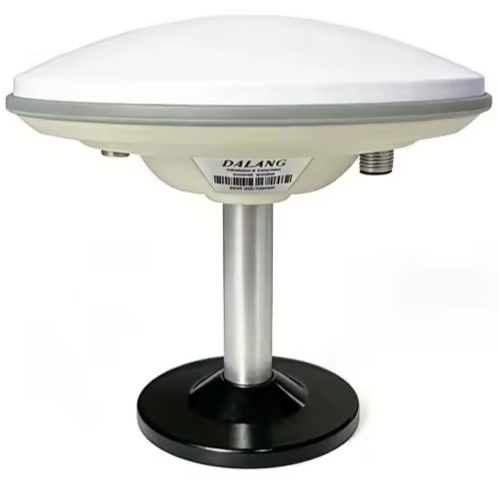
The AK330 antenna is what the market calls a smart antenna: the GNSS receiver and the antenna sit inside the same disc-shaped housing. The listing describes it as an RTK receiver for autopilot (for Autopilot). It is a product made to go on the roof of a tractor, powered by the machine’s battery and wired to the steering system.
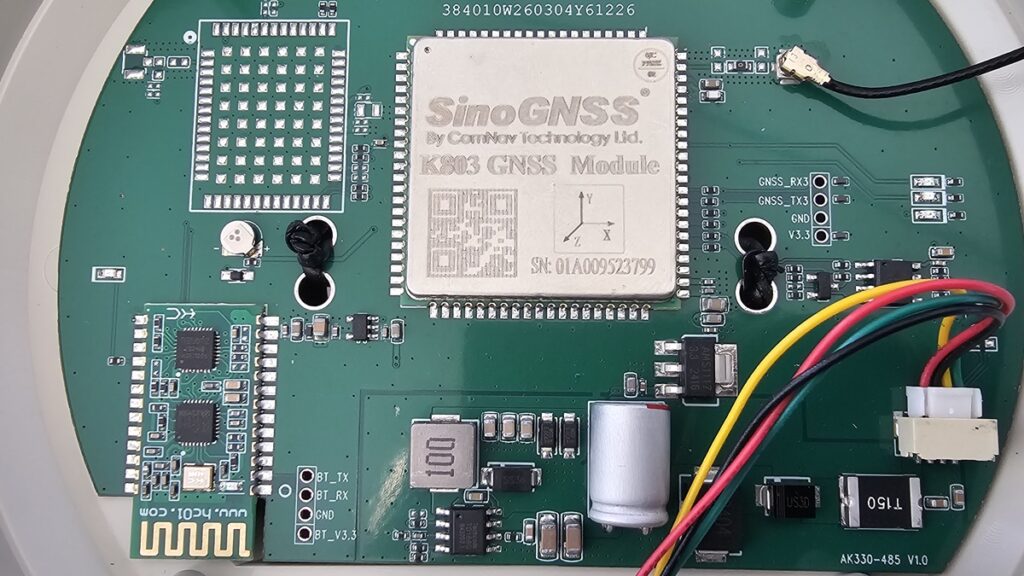
When we opened our unit, we found a ComNav K803 module, a 1408-channel GNSS engine.
| Feature | Value (listing and product manual) |
|---|---|
| Constellations and bands | GPS L1/L2/L5, GLONASS L1/L2, Galileo E1/E5a/E5b/E6, BeiDou B1/B2/B3, QZSS |
| Advertised RTK accuracy | 8 mm + 1 ppm horizontal, 15 mm + 1 ppm vertical |
| Data interface | RS485, through the cable |
| Bluetooth | 2.0 Classic, reference range of 10 m. The antenna also has Bluetooth LE, which the listing does not mention. |
| Power | 9 to 36 V DC, consumption under 3 W |
| Size and weight | 156.6 mm in diameter by 61 mm high, 551 g |
| Sealing | Fully sealed housing, from -25 to +75 °C |
| Cable | 4-pin aviation connector: power (+ and -) and RS485 (+ and -), plus the shield |
Two points in this table define everything that follows. First: the antenna does not run on 5 V, so plugging it into a power bank is not enough. Second: the official interface is RS485, designed for the tractor’s cable. Bluetooth is there, but the manufacturer treats it as an auxiliary channel.
Our experience, in the order it happened
The purchase. It was on impulse and in the dark. At the time the listing had little technical information, and there was no way to know which GNSS engine was inside or whether RTK came enabled.
The arrival. The antenna powered on, paired over Bluetooth and started sending positions. So far, so good: it was a good few-meter GPS.
The problem. When we turned on corrections, nothing happened. The solution stayed in SINGLE forever. We tested over Bluetooth and over cable, with two different correction providers, under open sky. The receiver got the data and simply did not use it. We even suspected that RTK was not enabled on that board.
The seller. We wrote to the seller explaining the problem. The answer was a firmware update program: a single executable file, with no instructions.
The update. Over Bluetooth the program could not update. The way out was to open the antenna, connect a USB-serial converter to three points on the board (RX3-TX3-GND) and reflash the firmware from there. It worked. Later, we repeated the update through the antenna’s own cable, with a USB-RS485 converter, without opening anything. It also worked, and that is the path we recommend.
The result. With the new firmware, the same antenna, in the same place, started accepting corrections. Under open sky it went to RTK FIXED within seconds.
The proof. We marked three points on the ground and measured the distances with a tape measure: 190.5 cm and 174.5 cm. Measured with the AK330 in RTK FIXED, they came out as 192.7 cm and 175.5 cm. Errors of 2.2 cm and 1.0 cm, on the same order as our manual marking of the points.
After that, the AK330 became test equipment for GPS TrackMaker Mobile. With it we validated the Bluetooth Classic connection, Online Correction, the Configure receiver screen and Base Station, including a test of 9 straight hours broadcasting as a base.
Is it worth it?
| Strengths | Weaknesses |
|---|---|
| Very low price for a multi-band receiver (L1/L2/L5). | Our unit did not do RTK from the factory: it required new firmware. |
| Large antenna, with a strong signal. In RTK FIXED it reported accuracy under 1 cm both horizontally and vertically. | The update requires a USB-RS485 converter and a Windows computer. |
| RTK FIXED within a few seconds under open sky. | 9 to 36 V power: it needs a step-up cable to be used with a power bank. |
| Sealed housing, built to work outdoors. | Large for a pole: 15.7 cm and 551 g. |
| Works as a rover and as a base station in GPS TrackMaker. | Minimal seller support: it solved the problem, but with no documentation. |
In one sentence: it is great value for money for those willing to do the bench work, and a risky purchase for those who are not.
What you need
| Item | What for |
|---|---|
| AK330 antenna with the 4-pin aviation cable | The receiver itself. |
| USB step-up cable, 5 V to 12 V | Powering the antenna from an ordinary power bank. |
| Power bank | Power source on the pole. |
| Pole or tripod, with an adapter for the antenna’s thread | Field use. |
| USB-RS485 converter | Updating the firmware through the antenna’s cable. |
| Windows computer | Running the update program. |
| Android phone with GPS TrackMaker 2.0 or later, or iPhone | Field use. |
Power: from 5 V to 12 V
The antenna’s cable ends in loose wires. According to the product table:
| Wire | Function |
|---|---|
| DC+ (9 to 36 V) | Power positive (brown) |
| DC- (GND) | Power negative and signal ground (black) |
| 485+ | RS485, positive signal (blue) |
| 485- | RS485, negative signal (white) |
| Shield | Shielding |
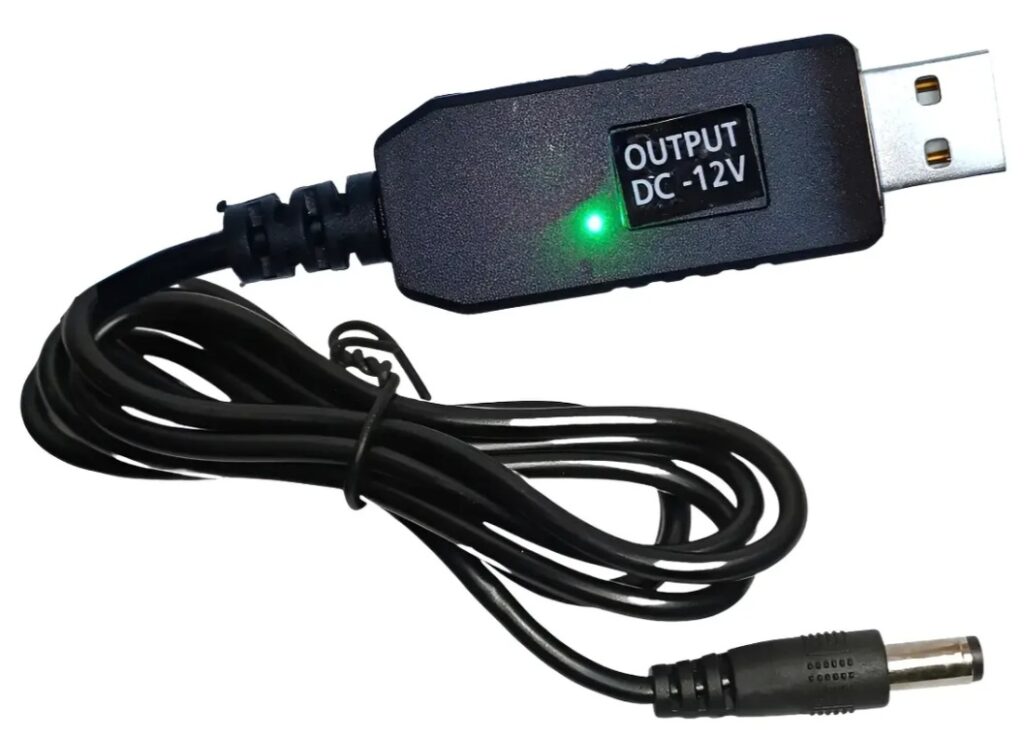
A power bank delivers 5 V, and the antenna needs at least 9 V. The solution is a USB step-up cable (5 V to 12 V), the kind sold for powering routers. Connect the cable’s 12 V output to the antenna’s DC+ and DC- wires, checking the polarity before powering up. The RS485 wires are only used for the firmware update. When using Bluetooth, keep them insulated.
The antenna draws less than 3 W. By that math, a 10,000 mAh power bank lasts a day in the field.
Tip: make this connection solid, with solder or a good-quality connector. On our bench, a bad contact in the power supply got in the way of the firmware update for quite a while.
Step 1: find out whether your unit needs the update
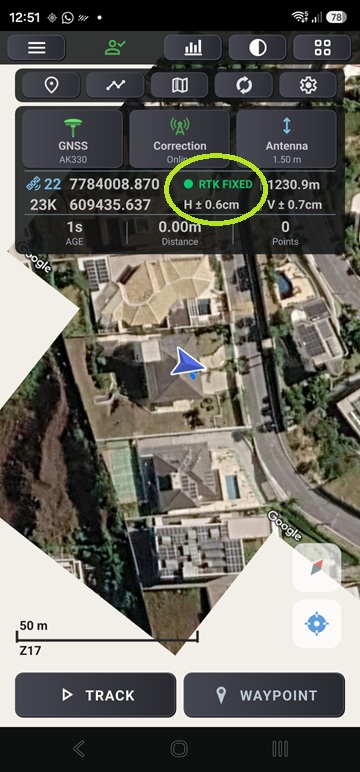
Before updating the firmware, test it. Your unit may already come with new firmware.
- Power the antenna and pair the Bluetooth in the Android settings. It shows up as AK330 and the PIN is 1234. On iPhone, no pairing is needed.
- In GPS TrackMaker, open the menu (☰), GNSS, tap the Bluetooth receiver card and choose the AK330 in the BLUETOOTH DEVICES box.
- Tap Configure receiver and then Activate Rover (the reason is in Step 3).
- Go to open sky, turn on Online Correction and wait five minutes watching the map panel.
If the label changes to RTK FLOAT and then to RTK FIXED, your unit is ready: skip to Step 3. If it stays in SINGLE the whole time, with the correction age (Age) empty or stuck at 99, even with Online Correction saying Receiving corrections, it is the same defect as ours.
To check the firmware version, in Configure receiver open Custom command and send:
LOG VERSIONAThe reply ends with the firmware version and date. Our unit came with version 7.4.2 (it did not do RTK) and ended up with 7.4.6, from April 2026, after the update.
Step 2: the firmware update
Here we describe what we did on our unit. It is not an official procedure from the manufacturer.
Warning: an interrupted update can leave the receiver unusable. Do it at your own risk, and only if you have hands-on experience with electronics.
Getting the program
Ask the seller, through the order page, for the AK330 firmware update program, explaining that the antenna does not accept RTK corrections. Ours came as a single Windows executable, ComNav’s updater for K7 and K8 series modules (the window is titled Update For K7/K8/T300+), with the K803 firmware already embedded.
Two notes about the file:
- It has no digital signature, and your email service may flag it as suspicious. Scan it with your antivirus before running it.
- If Windows complains that the file
mfc100.dllis missing, install the Microsoft Visual C++ 2010 Redistributable (x86) package.
What did not work: Bluetooth
We tried to update through the Bluetooth serial port, without opening the antenna. The program could not update. The update most likely does not work over Bluetooth.
The recommended path: a USB-RS485 converter
RS485 is the AK330’s main interface and comes out through the antenna’s own cable, on the 485+ and 485- wires. With a USB-RS485 converter connected to those wires, the update is done without opening the antenna. We repeated the update on our unit this way, and it went through without any problem. This is the path we recommend.
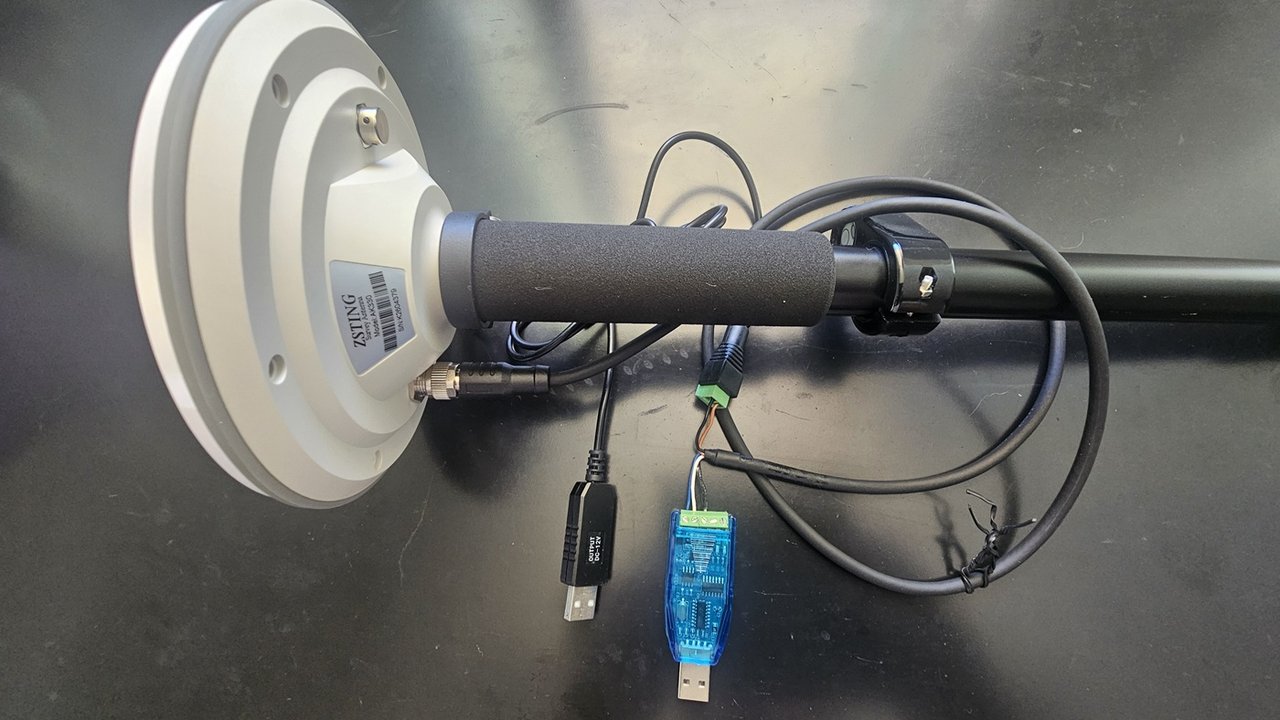
Connect the USB-RS485 converter to the antenna cable’s wires like this:
| USB-RS485 converter | AK330 cable |
|---|---|
| A | 485+ (blue) |
| B | 485- (white) |
| GND | DC- (black) |
The antenna stays powered at 12 V through the DC+ and DC- wires, as in normal use. The black wire (DC-) also goes to the converter’s GND.
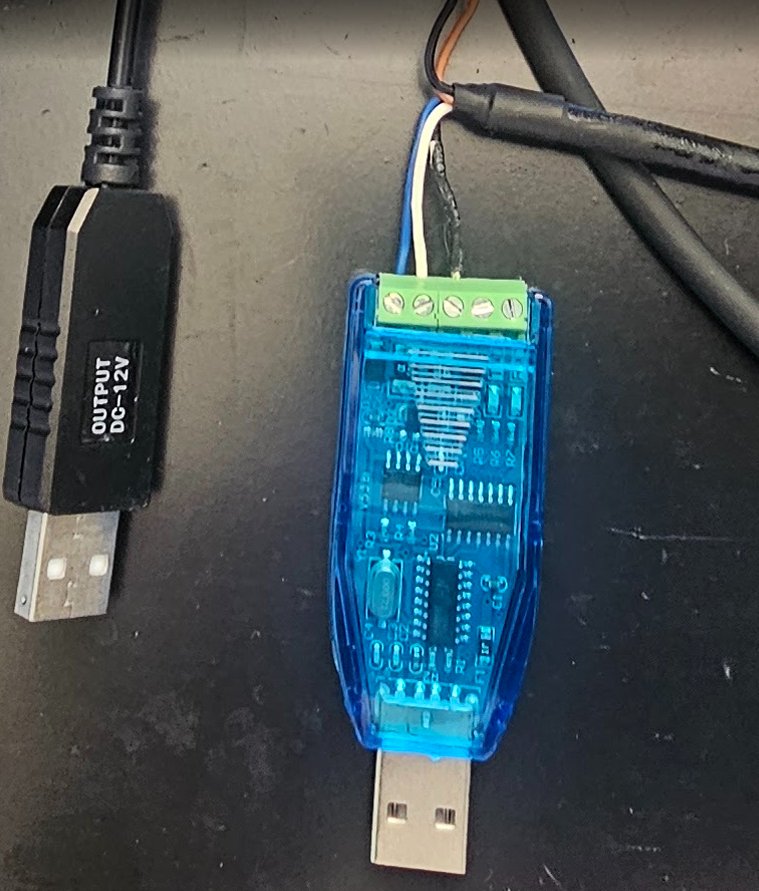
With everything connected:
- Open the update program on the computer.
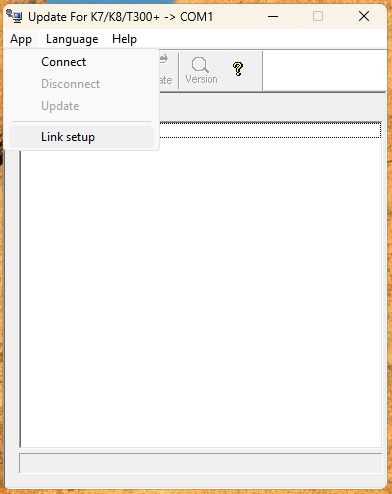
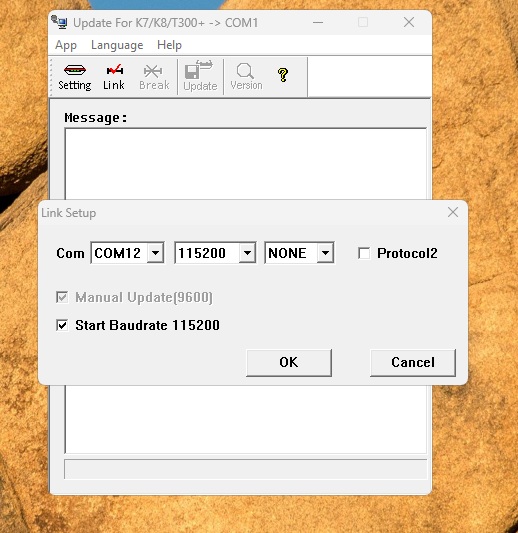
- In the App menu, choose Link setup. Select the COM port Windows assigned to the converter, speed 115200 and NONE in the third field. Leave Protocol2 unchecked and Start Baudrate 115200 checked. Confirm with OK.
- Click Link (or App, Connect). The program waits for the receiver.
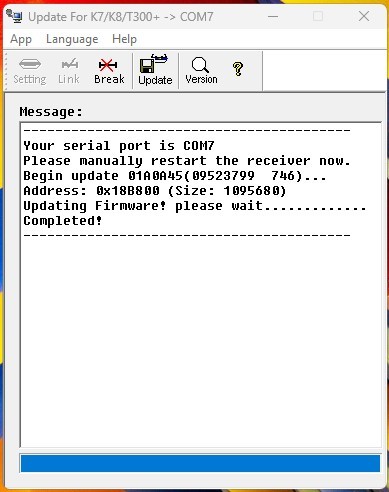
- Turn the antenna’s power off and on when the program asks for it (Please manually restart the receiver now). It catches the receiver at the moment it boots.
- Click Update and wait for the Completed! message. Do not power anything off while it is writing.
- Use Version to confirm the new version.
Alternative: the internal COM3 port
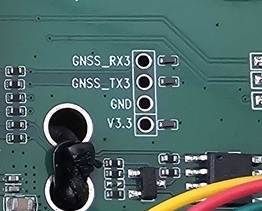
If you do not have the USB-RS485 converter, or if the update through it does not work, there is a second path, the one we used for our first update. It is the module’s internal serial port, with the antenna open.
Inside the antenna, the board has four points labeled on the silkscreen: GNSS_RX3, GNSS_TX3, GND and V3.3. They are the third serial port of the K803 module (COM3), at 115200 bps.
Connect the USB-serial converter like this:
| USB-serial converter | AK330 board |
|---|---|
| TX | GNSS_RX3 |
| RX | GNSS_TX3 |
| GND | GND |
| (do not connect) | V3.3 |
Warning: the converter must work with 3.3 V signals. A 5 V converter or an ordinary RS232 adapter can burn out the module’s port. And do not connect anything to the V3.3 point: the antenna stays powered through its own cable, at 12 V.
In the program, the steps are the same, choosing the USB-serial converter’s COM port. Afterwards, close the housing carefully, checking the seal.
Step 3: using the AK330 with GPS TrackMaker
With the firmware up to date, the AK330 is used like any Bluetooth receiver in the app. The complete step-by-step for each screen is on the NANO page, and it applies just the same. Here we cover only what is different for the AK330.
Connecting
- Pair the AK330 in Android’s Bluetooth settings (PIN 1234). This is required because, on Android, it connects over Bluetooth Classic. On iPhone, no pairing is needed.
- In the app: menu (☰), GNSS, Bluetooth receiver card. In the BLUETOOTH DEVICES box, tap the AK330, which on Android shows up labeled Bluetooth Classic.
- The status card turns green: Receiving GNSS data.
Activate Rover the first time
From the factory, the AK330 sends only the basic position message. Without the others, the app cannot show the accuracy (— appears in place of H and V), the satellite signal bars, the speed and the date.
Tap Configure receiver. The app already selects the AK330 (ComNav K803) device by its Bluetooth name. Tap Activate Rover: in about 10 seconds the app turns on the missing messages and saves the configuration to the receiver (Done. Saved to the receiver). You only need to do this once.
Online Correction and RTK
Same as any receiver: enter the Antenna height, open Online Correction, choose the server and tap Connect. Under open sky, we saw the AK330 leave SINGLE and reach RTK FIXED in 8 seconds.
Base Station
The AK330 also works as a base. In Configure receiver, Activate Base Station works as described on the NANO page: choose the waypoint of the point (or Use average point), the antenna height, give the base a name and tap Start. We ran a test of 9 straight hours on air, with the phone screen off, without a single Bluetooth drop.
One difference: the AK330 remembers the mode it was left in. If you power it off as a base, it powers on as a base. Before going back to measuring with it, tap Activate Rover.
To restart the receiver without losing the configuration, use the Restart the receiver line.
What we measured
| Test | Result |
|---|---|
| Distances between points on the ground, against the tape measure | 192.7 and 175.5 cm measured, for 190.5 and 174.5 cm actual |
| Time to RTK FIXED, open sky | 8 seconds |
| Accuracy reported by the receiver in RTK FIXED | H ±0.7 to 0.8 cm, V ±0.8 to 0.9 cm |
| Bluetooth range | Antenna outside and phone about 10 m away, indoors, no drops |
| Track recording with the screen off | 30 minutes in RTK FIXED, one point per second, no points lost |
| Continuous base station | 9 hours on air, no Bluetooth drops |
Common issues
| What you see | Likely cause | What to do |
|---|---|---|
| The antenna does not power on | Power below 9 V or reversed polarity. | Check the 12 V cable and the DC+ and DC- wires. |
| The AK330 does not show up in the app’s list | It was not paired in Android. | Pair it in the phone’s Bluetooth settings (PIN 1234). |
| Position without accuracy (—) and without signal bars | Receiver with only the factory message. | Configure receiver, Activate Rover. |
| Stays in SINGLE with correction on, Age empty or at 99 | Old firmware. | Steps 1 and 2 on this page. |
| Connected, receiver silent | Receiver with no messages configured, or locked up by a command. | Power the antenna off and on. Then Activate Rover. |
| Position is not changing | The receiver was left in base mode. | Activate Rover. |
| The update program does not find the receiver | 485+ and 485- wires swapped, wrong COM port or a bad contact in the power supply. | Check the wiring, the port and the power, and repeat the antenna power cycle. |
Conclusion
The AK330 cost us a few weeks of bench work and gave us back a centimeter RTK at a price that does not exist in the surveying market. The antenna is good, the GNSS engine is serious and, with the right firmware, the set works very well with GPS TrackMaker.
It just is not a finished product. Whoever buys it needs to be willing to test, to talk to the seller and, possibly, to update the firmware from a computer. If that is your profile, it is an experience we recommend. If not, the short path is a receiver that works out of the box, like the NANO RTK Pro.
Still have questions? Reach us through the contact page.