
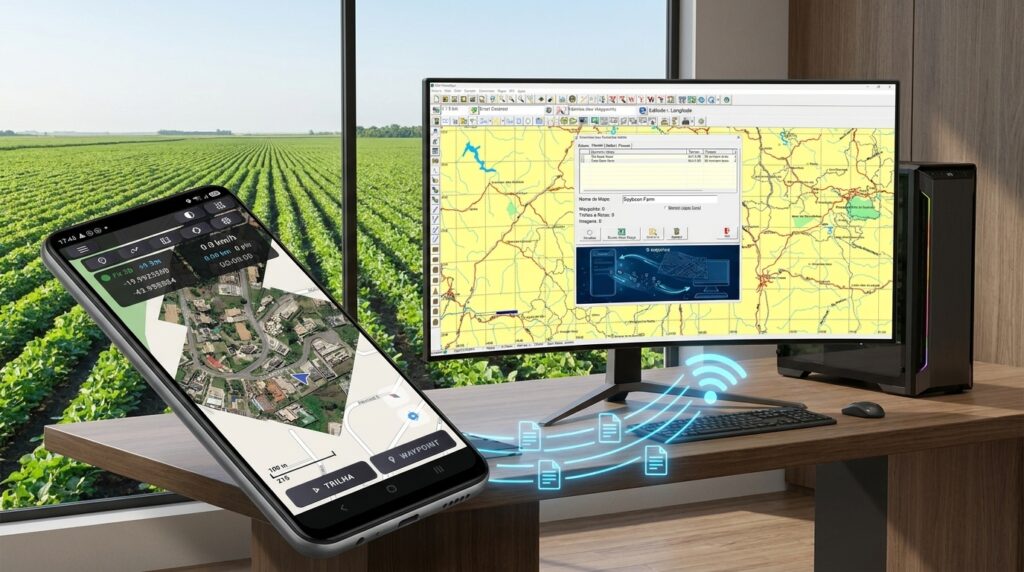
Connect your phone to your GPS TrackMaker PRO account and exchange maps with the computer, with no cable, no driver and no password typing
Pairing links the GPS TrackMaker Android app to your GPS TrackMaker PRO account. Once paired, your phone and your computer exchange files directly over the internet. The whole process takes less than a minute and is done only once.
Why pair
With pairing active, the app sends GTZ files to the computer with the waypoints and tracks you collected in the field. In the other direction, the phone receives complete MAP files from GPS TrackMaker PRO, carrying every graphic element of a map: waypoints, tracks, polygons, roads, highways, bridges, rivers, and also raster layers such as Google satellite imagery.
In practice, you collect data in the field and finish the job at the office, or you prepare a complete map of your area on the computer and carry it in your pocket to the field.
What you need
- GPS TrackMaker PRO version 5.2 or later installed on the computer, signed in to your account. If you need to update, download the latest version from the License Manager;
- The GPS TrackMaker Android app installed on your phone, available on Google Play;
- Internet access on both the computer and the phone.
Pairing is a feature of the GPS TrackMaker PRO subscription. The free version of GPS TrackMaker does not offer synchronization with the app.
How to pair, step by step
1. Allow location access
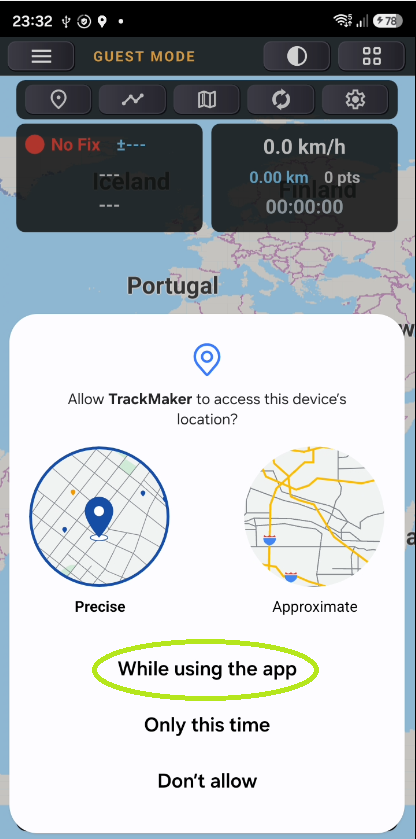
The first time the app opens, Android asks whether it may access the device location. Choose While using the app. This permission is what lets the app record tracks and mark waypoints with the phone GPS.
2. Open pairing on the computer
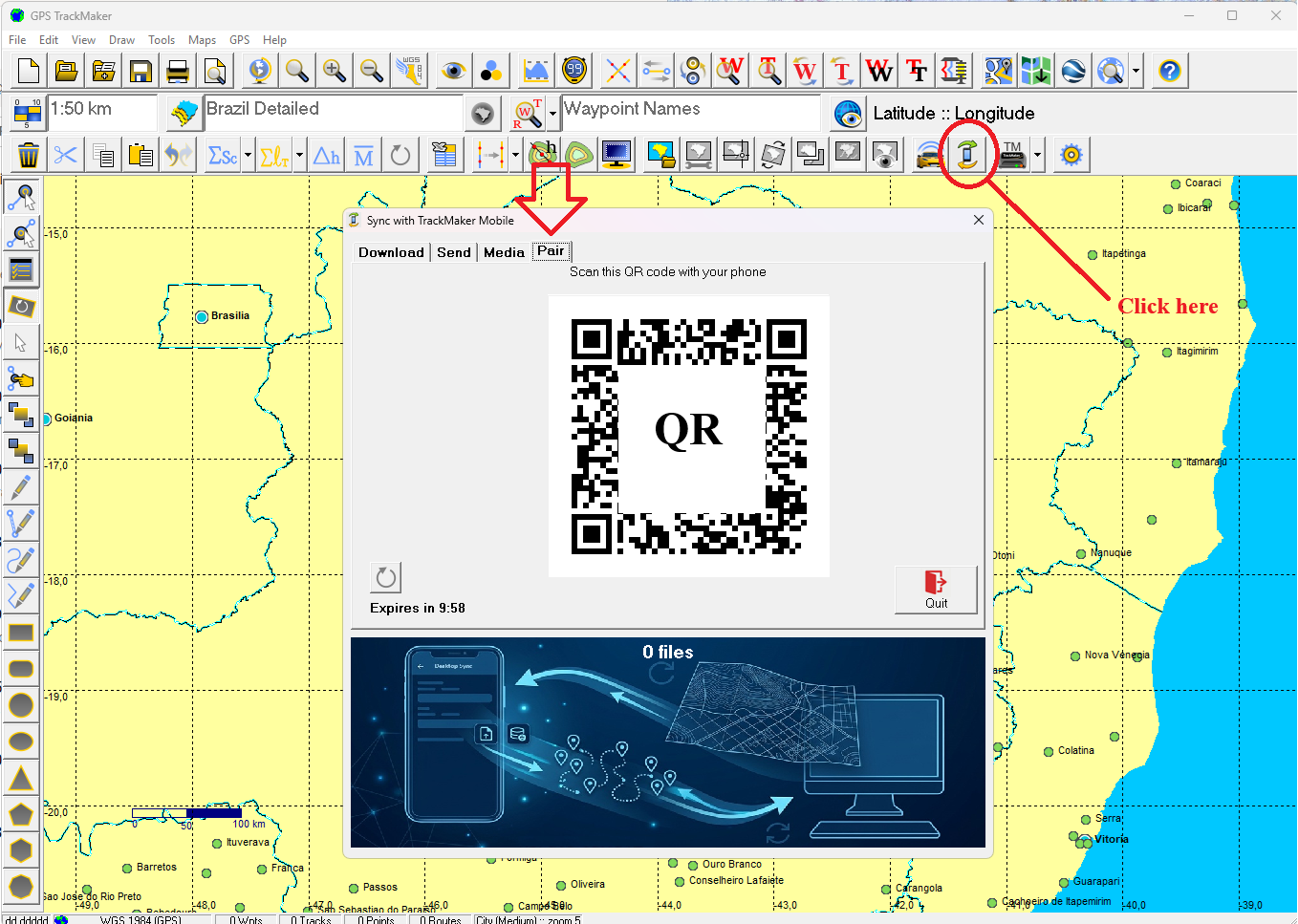
In GPS TrackMaker PRO, click the synchronization button on the toolbar, shown in the image below. In the Sync with TrackMaker Mobile window, open the Pair tab. A QR code appears on the screen. It expires after a few minutes for security, but you can generate a new one at any time with the refresh button.
3. Sign in to the app
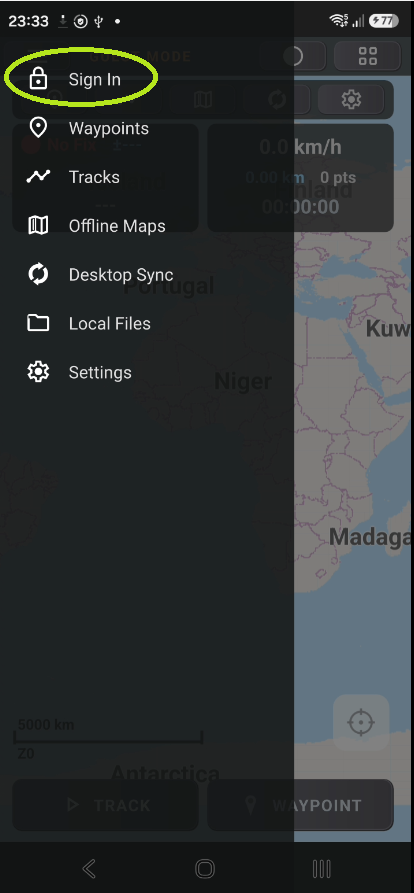
On the phone, tap the app menu and choose Sign In.
4. Scan the QR code
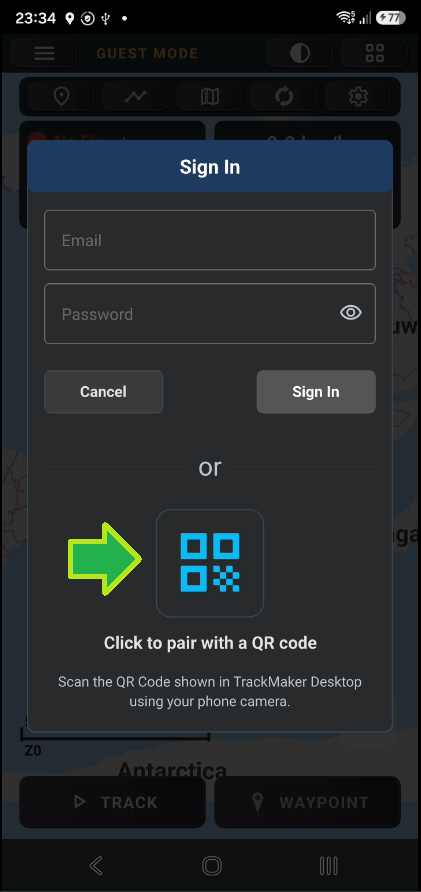
On the sign-in screen, tap Click to pair with a QR code and point the phone camera at the code displayed on the computer. Within a few seconds the app confirms the pairing, with no email or password typed. Done: from that moment on, file exchange between the phone and the computer is up and running.
Common issues
- The QR code expired. Click the refresh button on the Pair tab to generate a new code.
- The camera will not read the code. Increase the brightness of the computer screen and move the phone slightly back until the focus settles.
- Prefer typing your password? Signing in with email and password remains available on the same screen, just above the QR code button.
- I cannot find the Pair tab. Pairing is available starting with GPS TrackMaker PRO version 5.2. Download the latest version from the License Manager.
Still have questions? Reach us through the contact page.